Rowe.support JORDAN ROWE • REMOTE SUPPORT

Detected Device: Windows

CLICK HERE TO DOWNLOAD REMOTE SUPPORT Download for Windows One-Time Support • Windows PC (.exe)

Or Choose Your Device (Windows, Mac, iPhone, iPad, or Android)

Optional Tutorials & Help

Select a Topic Below If You Need Instructions

Step-by-Step Picture Tutorial (What To Click After Downloading) Click here to open visual instructions for Windows, Mac, iPhone, iPad & Android
View Tutorial
3 Simple Steps

What To Click

1 Step 1
Step 1: Open the downloaded file

Open the File

Click the blue button above and open the file.
2 Step 2
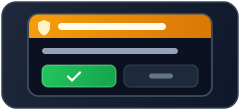
Step 2: Click Yes to allow permission

Click "Yes"

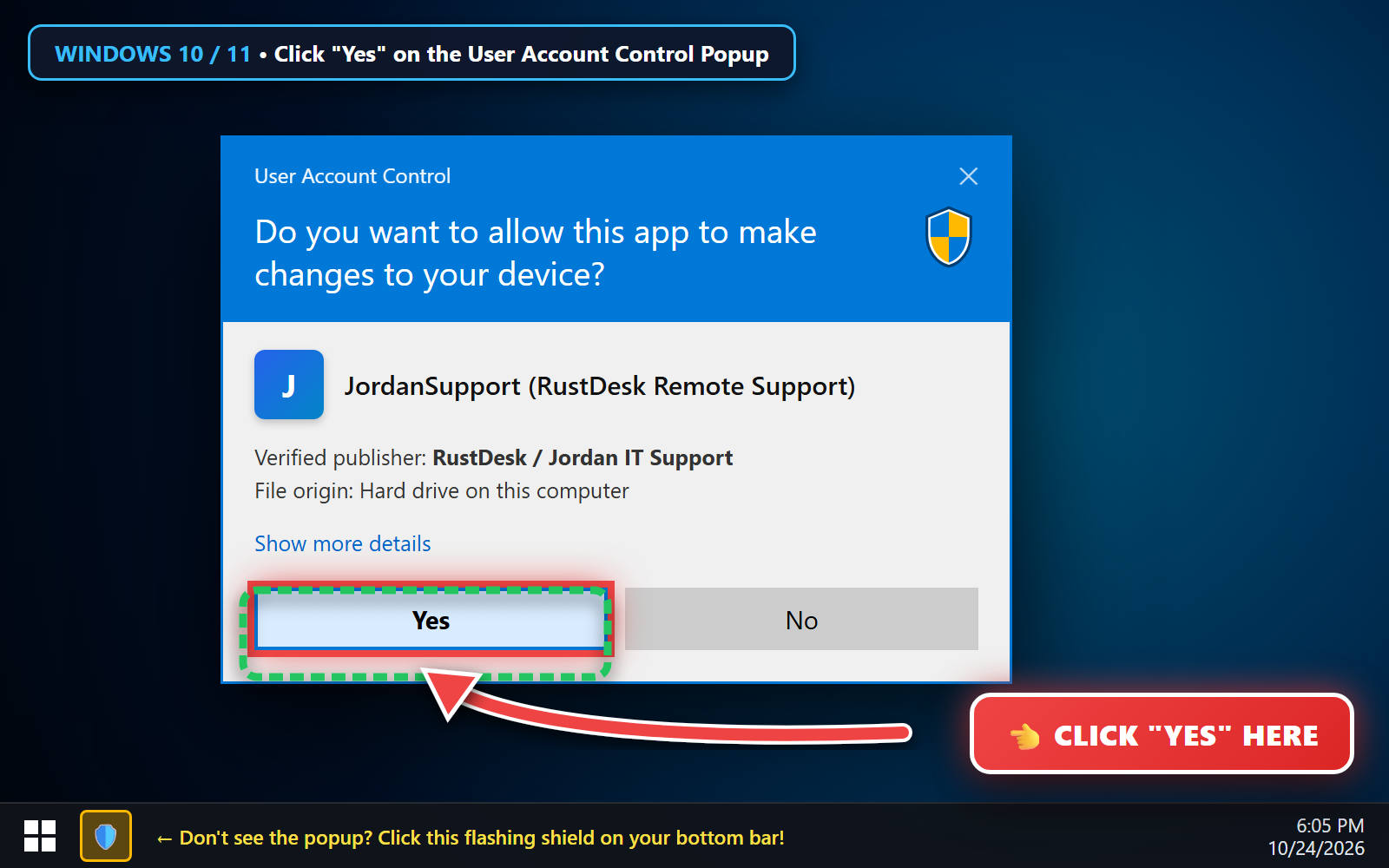
Click "Yes" if Windows asks for permission.
3 Step 3
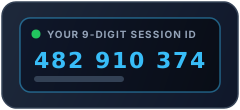
Step 3: Read your 9-digit code to Jordan

Read Your Code

Read the 9-Digit ID on your screen to Jordan.

Windows

Windows PC / Laptop

  1. Click CLICK HERE TO DOWNLOAD REMOTE SUPPORT above.
  2. Look at the top-right corner of your browser (Downloads) and click the file to run it.
  3. Click "Yes" on the Windows security popup, then read your 9-Digit ID to Jordan.
macOS

Apple Mac / MacBook (macOS)

  1. Open the downloaded .dmg file from your Downloads folder.
  2. Double-click Start Jordan Support.command (or drag RustDesk into Applications).
  3. Turn ON Screen Recording & Accessibility in System Settings, then read your 9-Digit ID.
iPhone and iPad

iPhone & iPad (iOS / iPadOS)

  1. Tap the big download button above to open RustDesk in the Apple App Store.
  2. Tap Get / Download, then tap Open when finished.
  3. Tap Start Broadcast and read your 9-Digit ID to Jordan.
Android

Android Phone & Tablet

  1. Tap the big download button above and tap Open when the .apk finishes downloading.
  2. Tap Install (and allow installation if Android asks).
  3. Open the app, tap Start Now to share your screen, and read your 9-Digit ID.
Permission Help (Mac, Windows, iPhone/iPad & Android) Where to click if your device asks for Screen Recording, Accessibility, or User Account Control
View Guide
Windows

Windows (PC / Laptop)

  1. Click Yes when the User Account Control window appears.
  2. If you don't see the window, click the flashing shield icon on your bottom taskbar.
macOS

macOS (Mac / MacBook)

  1. Open System Settings → Privacy & Security.
  2. Turn ON Screen Recording for RustDesk.
  3. Turn ON Accessibility for RustDesk.
iPhone and iPad

iPhone & iPad (iOS)

  1. Open RustDesk and tap Share Screen at the bottom.
  2. Tap Start Service, then tap Start Broadcast.
Android

Android Phone & Tablet

  1. Open the app, tap Share Screen, and tap Start Service.
  2. Select Entire screen (if asked) and tap Start now.
Pre-Flight Connection Check Check your connection speed if asked by Jordan
Open Tool
Device Detecting...
Screen Detecting...
Connection Click "Run Check"
Mode QuickSupport